How to use your Manna
You can’t break anything. Try it, and if you get lost, press the round button.
Just remember three things
What do you want to do?
Turn it on
- Press the round button.
- It opens right where you left off.
If it was off, give it about 3 seconds. If it’s only resting, the Up or Down button wakes it too.
↑ Back to the topTurn the page
- Swipe left for the next page.
- Swipe right to go back a page.
Or press the Down button for the next page and Up to go back.
 ↑ Back to the top
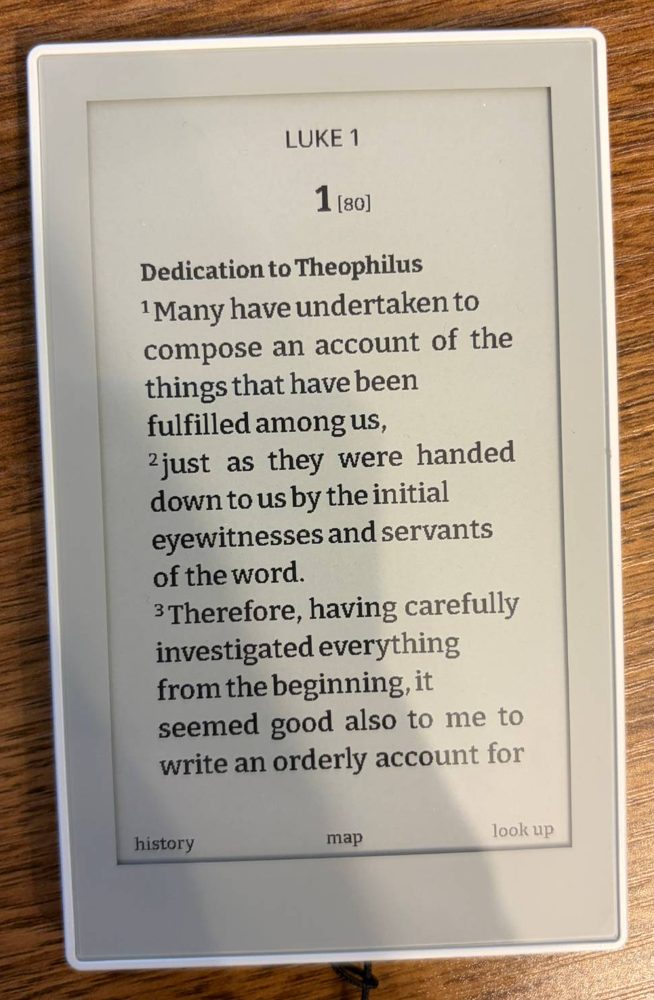
What does a word mean?
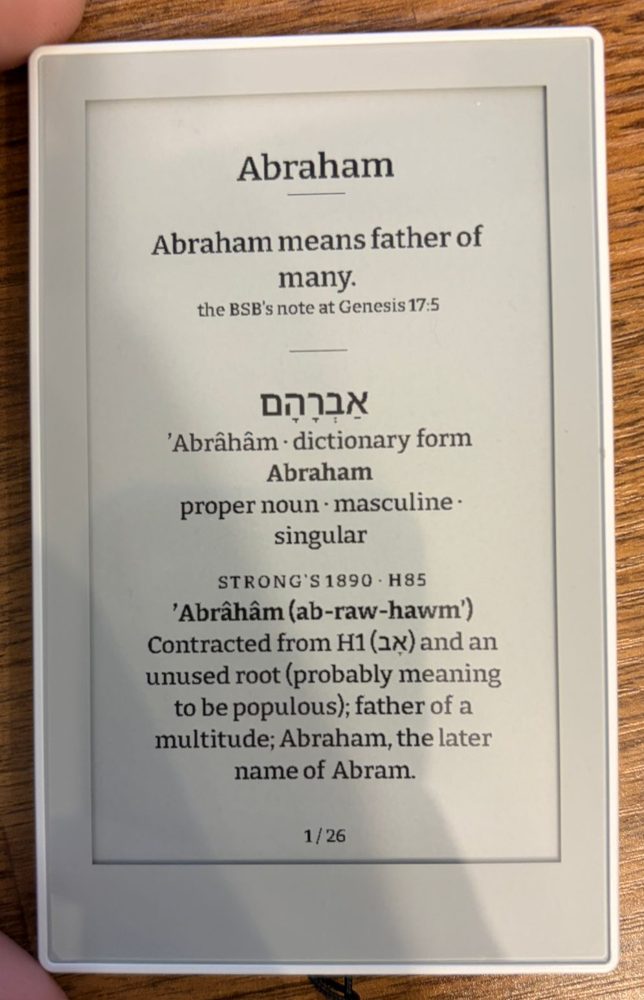
- Tap the word on the page.
- A card shows what it means, the Greek or Hebrew word, and the book it comes from.
- Press Down for more, like other verses with the same word.
- Press the round button to go back to your reading.
Almost every word has a card. Tap a person’s name to see who they were, what the name means, and their story. Tap a place name to see where it is.
 ↑ Back to the top
See related verses
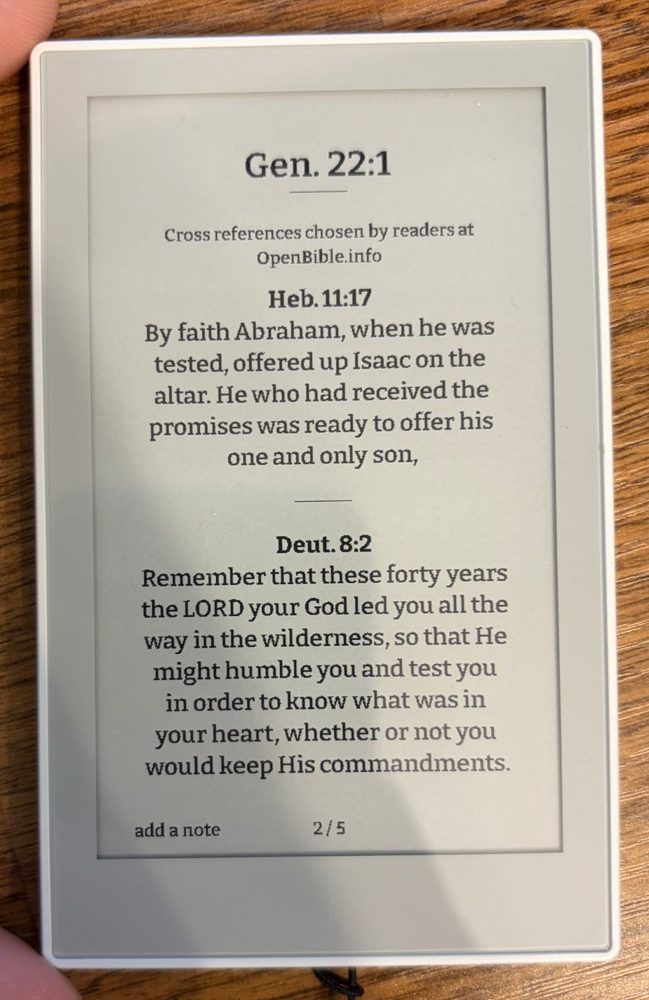
- Tap the small verse number in front of a verse.
- You’ll see other verses that connect to it and the translators’ notes.
- Press Down (or tap the card) for the next page. Press the round button to go back.
Tap a reference on a card to peek at that verse without leaving.
 ↑ Back to the top
See a map
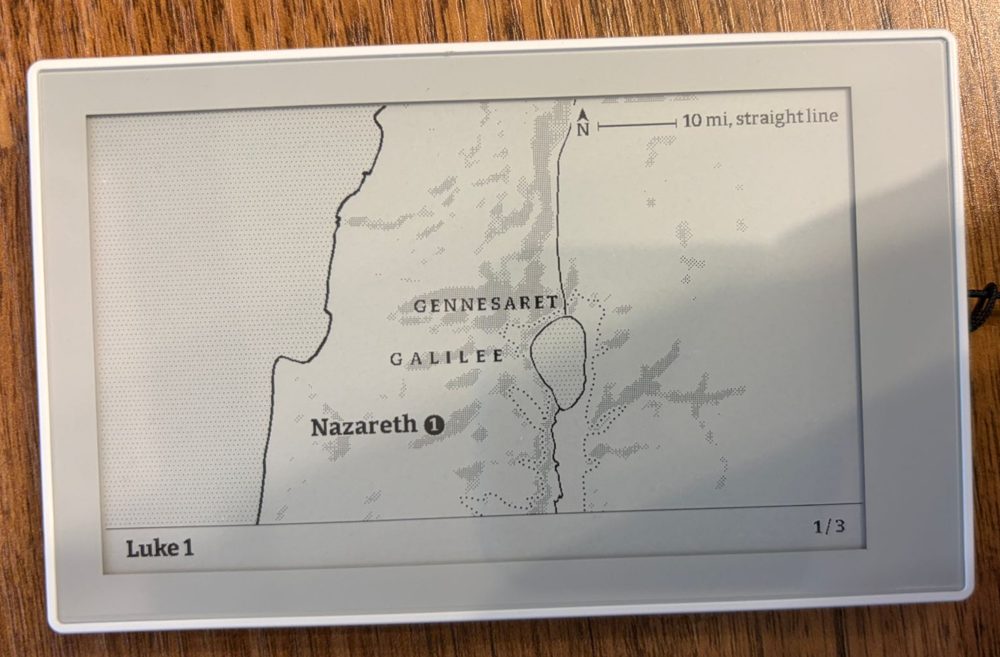
- Look at the bottom of the page. If you see map, tap it.
- You’ll see where this chapter happens.
Maps are drawn sideways — turn your Manna on its side. You can also tap a place name, like Nazareth, in the text.
 ↑ Back to the top
Go to another book
- Press the round button. You’ll see every book of the Bible.
- Tap a book.
- Tap a chapter.
Shortcut: tap the book name at the top of the page. Tap the chapter number to pick a different chapter.
↑ Back to the topFind a word or verse
- Tap look up at the bottom of the page.
- Type the word on the keyboard.
- Press the round button to open what it means.
To find every verse with those words, tap FIND VERSES instead.
↑ Back to the topGo back to where I was
- Tap history at the bottom of the page.
- Tap any chapter you read lately.
While you’re looking around, the bottom-left corner says < back to… — tap it to jump right back to your place.
↑ Back to the topWrite a note
- Tap the verse number of the verse you want.
- Tap add a note at the bottom.
- Type your note, then tap SAVE.
Your note shows on that verse’s card, and a small line appears under the verse number. To change it, tap edit note. To see all your notes, tap history, then notes >.
↑ Back to the topDo a study
- Press the round button to see every book.
- Tap studies at the bottom.
- Pick a study. You’ll see its path of stops.
- Tap a stop to read it. Swipe to keep going.
Tap < path to see all the stops again.
↑ Back to the topMake the text bigger
- Press the round button to see every book.
- Tap about at the bottom.
- Tap one of the Aa boxes. Bigger box, bigger text.
Turn it off & battery
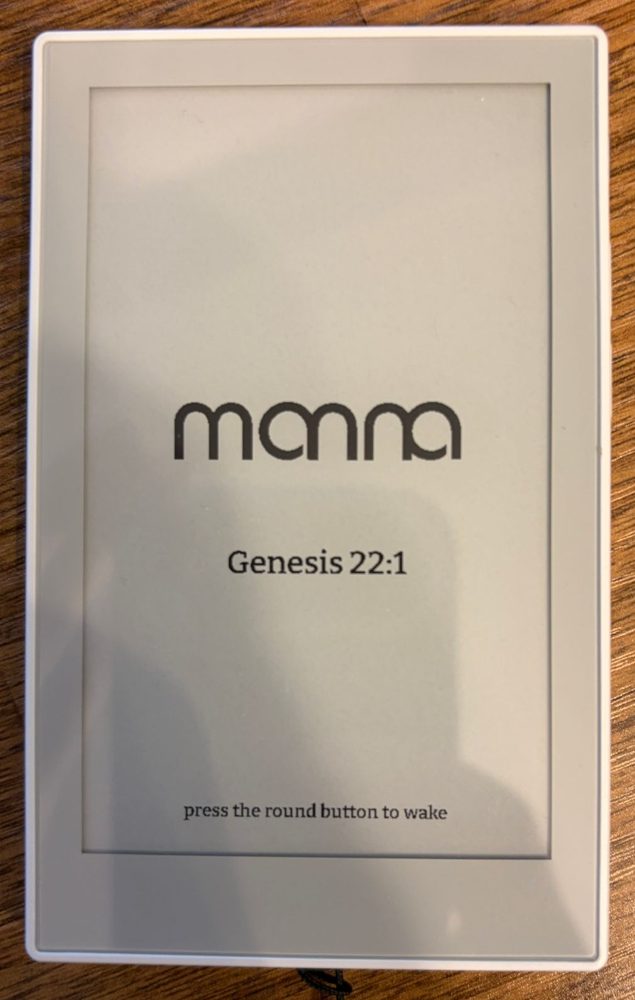
- You don’t have to. It rests by itself after 5 minutes and turns off after 20.
- To turn it off now: press the round button, then tap power off at the bottom.
The battery level is next to power off. When it’s low, plug in a USB-C cable to charge.
 ↑ Back to the top
Good to know
- The screen flashes now and then. That’s normal. It wipes faint marks off the screen.
- Your place is saved for you. Just read. Every page you turn is remembered.
- Looking around won’t lose your place. Tap < back to… at the bottom to return.
- Swipes turn pages while reading. On cards, use the Down button or tap.
Use it with your iPhone
Your Manna works perfectly on its own. The free Manna app for iPhone is coming soon. It adds:
- Ask out loud — hold the round button and ask, like “What does grace mean?”
- Reading plans — today’s reading shows up on your Manna.
- New studies — send them to your Manna.
When the app is ready, here’s how to connect:
- On your Manna, press the round button, then tap about.
- Tap Manna on your phone, then Connect to phone.
- Open the Manna app on your iPhone. It connects.
- Done. With the app open, hold the round button, ask your question, and let go. The answer appears on your Manna.
Lost? Press the round button once or twice. It takes you back to every book of the Bible.
Still need help? Email us at help@mannaslate.com.
A real person reads every message.